


DIRectory and File Copy Utility.
Last week, we explored how to use the Dir() DOS command to read files from the Disk one by one and display their names in the Debug window.
Building on that, we will now create a VBA utility that uses the Dir() command together with the very useful FileCopy statement (note that it is a statement, not a function) to read and transfer files from one folder to another location on the Disk. The files can be of any type—for example, *.pdf, *.docx, *.xls, or *.* (all files).
This utility will read the files from a folder specified in a text box, list them in a list box using the Dir() command, and allow you to copy either all the listed files or only the selected ones to a target folder specified in another text box.
The Utility Form.
The design view image of a Form created for this purpose is given below for reference:

The form design is simple, consisting of two text boxes, one list box, three command buttons, and a label control to display messages from the utility program. You can download this utility form as part of a sample database at the end of this article.
These are the names of the Controls on the Form:
Top TextBox: Source
Text Box 2: Target
List Box: List1
Top Command Button: cmdDir
Second Command Button: cmdSelected
Last Command Button: cmdClose
Bottom empty Label Name: msg
Note: If you are designing this form yourself, make sure that the same control names are used as described above. The VBA code you will copy into the module references these exact names.
In addition to the main controls, a Label control below the first (source) TextBox provides examples of how to specify the source file path correctly.
Another label control at the bottom of the form displays messages during input validation and error notifications while the VBA code is executing.
An Image of a sample run of the FileCopy Statement is given below:
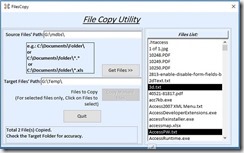
You can create this user interface using the control names provided above. Once the form is designed with the correct control names, open the VBA window for the form and copy the following code into its VBA module:
The Form Module Code.
Option Compare Database
Option Explicit
Dim strSource1 As String
Dim strSource2 As String, strMsg As String

Private Sub cmdClose_Click()
On Error GoTo cmdClose_Click_Error

If MsgBox("Close File Copy Utility?", vbOKCancel + vbQuestion, "cmdClose_Click()") = vbOK Then
   DoCmd.Close acForm, Me.Name, acSaveYes
End If

cmdClose_Click_Exit:
Exit Sub

cmdClose_Click_Error:
MsgBox Err.Description, , "cmdClose_Click()"
Resume cmdClose_Click_Exit
End Sub

Private Sub cmdDir_Click()
'=========================================================
'Author : a.p.r.pillai
'Date   : June 2018
'Purpose: Take directory listing
'Rights : All Rights Reserved by www.msaccesstips.com
'=========================================================
Dim strSource As String, strMsg As String
Dim i As Integer, x As String
Dim j As Integer, strfile As String
Dim strList As ListBox, LList As String

On Error GoTo cmdDir_Click_Err
msg.Caption = ""

'Read Source location address
strSource = Nz(Me!Source, "")
If Len(strSource) = 0 Then
    strMsg = "Source Path is empty."
    MsgBox strMsg,vbOKOnly + vbCritical, "cmdDir_Click()"
msg.Caption = strMsg
    Exit Sub
End If

'check for the last back-slash location
'this can be used to split the folder name
'and file name type values separately.

i = InStrRev(strSource, "\")

'get the folder name part into the variable
strSource1 = Left(strSource, i)

'take file type (*.docx, *.exl, *.txt etc.) value into a separate
'variable temporarily
If Len(strSource) > i Then
    strSource2 = Right(strSource, Len(strSource) - i)
End If

'define Listbox object
Set strList = Me.List1

'Read the first file from the folder
strfile = Dir(strSource, vbHidden)
If Len(strfile) = 0 Then
    strMsg = "No Files of the specified type: '" & strSource2 & "' in this folder."
    MsgBox strMsg, vbCritical + vbOKOnly, "cmdDir()"
    msg.Caption = strMsg
    Exit Sub
End If

j = 0
LList = ""
Do While Len(strfile) > 0
   If Left(strfile, 1) = "~" Then 'ignore backup files, if any
      GoTo readnext:
   End If
    j = j + 1 'File list count
    LList = LList & Chr(34) & strfile & Chr(34) & ","

readnext:
    strfile = Dir() ' read next file
Loop

LList = Left(LList, Len(LList) - 1) ' remove the extra comma at the end of the list
strList.RowSource = LList 'insert the files list into the listbox RowSource property
strList.Requery 'refresh the listbox
msg.Caption = "Total: " & j & " Files found."

Me.Target.Enabled = True

cmdDir_Click_Exit:
Exit Sub

cmdDir_Click_Err:
MsgBox Err.Description, , "cmdDir_Click()"
Resume cmdDir_Click_Exit

End Sub


Private Sub cmdSelected_Click()
'=========================================================
'Author : a.p.r.pillai
'Date   : June 2018
'Purpose: Copy Selected/All Files to Target Location
'Rights : All Rights Reserved by www.msaccesstips.com
'=========================================================

Dim lstBox As ListBox, ListCount As Integer
Dim strfile As String, j As Integer, t As Double
Dim strTarget As String, strTarget2 As String
Dim chk As String, i As Integer, yn As Integer
Dim k As Integer

On Error GoTo cmdSelected_Click_Err

msg.Caption = ""
'Read Target location address
strTarget = Trim(Nz(Me!Target, ""))

'validate Destination location
If Len(strTarget) = 0 Then
   strMsg = "Enter a Valid Path for Destination!"
   MsgBox strMsg, vbOKOnly + vbCritical, "cmdSelected()"
   msg.Caption = strMsg
   Exit Sub
ElseIf Right(strTarget, 1) <> "\" Then
      strMsg = "Correct the Path as '" & Trim(Me.Target) & "\' and Re-try"
      MsgBox strMsg, vbOKOnly + vbCritical, "cmdSelected()"
      msg.Caption = strMsg
      Exit Sub
End If

'Take a count of files in listbox
Set lstBox = Me.List1
ListCount = lstBox.ListCount - 1

'take a count of selected files, if any, for copying
i = 0
For j = 0 To ListCount
If lstBox.Selected(j) Then
  i = i + 1
End If
Next

'identify user's response for copy
If (i = 0) And (ListCount > 0) Then
       strMsg = "Copy all Files..?"
       Me.cmdSelected.Caption = "Copy All"
Else
       strMsg = "Copy Selected Files..?"
       Me.cmdSelected.Caption = "Copy Marked files"

End If

'Me.cmdSelected.Requery

'get copy option from User
yn = MsgBox(strMsg, vbOKCancel + vbQuestion, "cmdSelected_Click()")

'Run Copy selected option
If (i = 0) And (yn = vbOK) Then
    GoSub allCopy
ElseIf (i > 0) And (yn = vbOK) Then
    GoSub selectCopy
Else
    Exit Sub
End If

'disable Copy button to stop a repeat copy of the same files.
'Remarks: User can make fresh selections from the same list
'To copy them to the same target locatiion.
'Or to a different location by specifying different Path
'in the Destination Text Box
Me.List1.SetFocus
Me.cmdSelected.Enabled = False

'Display copy status
strMsg = "Total " & k & " File(s) Copied." & vbCrLf & "Check the Target Folder for accuracy."
MsgBox strMsg, vbInformation + vbOKOnly, "cmdSelected_Click()"
Me.msg.Caption = strMsg

cmdSelected_Click_Exit:
Exit Sub

allCopy:
k = 0
For j = 0 To ListCount
    strfile = lstBox.ItemData(j)

    strSource2 = strSource1 & strfile
    strTarget2 = strTarget & strfile

    FileCopy strSource2, strTarget2
  'give enough time to copy the file
  'before taking the next file
  k = k + 1
  t = Timer()
  Do While Timer() > (t + 10)
    'do nothing
  Loop
Next
Return

selectCopy:
k = 0
For j = 0 To ListCount
   If lstBox.Selected(j) Then
        strfile = lstBox.ItemData(j)
        strSource2 = strSource1 & strfile
        strTarget2 = strTarget & strfile

            FileCopy strSource2, strTarget2
               'give enough time to copy the file
               'before taking the next file
               k = k + 1
                t = Timer()
                Do While Timer() > (t + 10)
                    'do nothing
                Loop
   End If
Next
Return


cmdSelected_Click_Err:
MsgBox Err.Description, , "cmdSelected_Click()"
Me.msg.Caption = Err.Description
Resume cmdSelected_Click_Exit

End Sub


Private Sub List1_AfterUpdate()
On Error GoTo List1_AfterUpdate_Error
Me.cmdSelected.Enabled = True
List1_AfterUpdate_Exit:
Exit Sub

List1_AfterUpdate_Error:
MsgBox Err.Description, , "List1_AfterUpdate()"
Resume List1_AfterUpdate_Exit
End Sub
You may save the Form as FileCopy.
Note: FileCopy is a VBA Statement, not a built-in Function.
You can copy different sets of files selected from the ListBox to different target folders by first deselecting any previous selections, selecting the desired files, and updating the destination folder address in the TextBox.
Download the Demo Database.
You may download the sample database with the VBA Code from the Link given below:
 Download FileCopy2007.zip Download (2003) FileCopy.zip






