


ControlTip Text and Time Delay.
Most of the controls on a Form—such as CommandButtons, Labels, TextBoxes, and others—have a ControlTip Text property. We can store text data in this property, up to 255 characters, either manually during design time or programmatically through VBA.
The text entered here is displayed when the mouse pointer hovers over the control for a few seconds. This is particularly useful for providing quick hints or instructions, such as prompting to click or double-click a control to run a program or macro attached to it.
Similarly, Toolbar Buttons in Access also feature this capability through their ScreenTip property (which functions the same way as ControlTip Text). These small pop-up hints guide users by explaining what each button does or by suggesting keyboard shortcuts.
For example, when you point to the Copy toolbar button, the tooltip displays “Copy (Ctrl+C)”, indicating that you can either click the button or press Ctrl+C to copy the selected text or control.
This brief delay before the tooltip appears is intentional—it assumes that if the user leaves the mouse resting on a control, they may be uncertain about its function. The tooltip then provides helpful information about the control’s purpose or action, improving the overall user experience.
Our own Method without Time Delay.
Here, we will implement a new method for the controls on the Main Switchboard (Control Screen)—such as CommandButtons and ListBoxes—to provide immediate feedback without the time delay inherent in the ControlTip Text property.
There is another property, called Tag, located near the ControlTip property in the control’s property sheet. Its function is not predefined and is completely free for custom use. The value stored in the Tag property does not affect the control’s behavior or interact with other properties in any way. In fact, you can store up to 2048 characters of text here—enough to write a short description or even a mini story!
We will use this Tag property creatively on the Main Switchboard controls in a sample database. The idea is to instantly display helpful hints or action clues to the user—for example, what each control does or what action (click or double-click) should be performed to run a program or macro associated with that control.
To implement this, open the Property Sheet (via View → Properties) for each control on the Switchboard, and type your desired descriptive text into the Tag property. Then, place a Label control at the bottom of the Form (give it a dark background or any color you prefer) to serve as the “instant help bar.”
When the mouse pointer moves over a control with the Tag Property set with hints, the Tag’s text value appears immediately in that label—without any delay—offering the user quick, context-sensitive information.
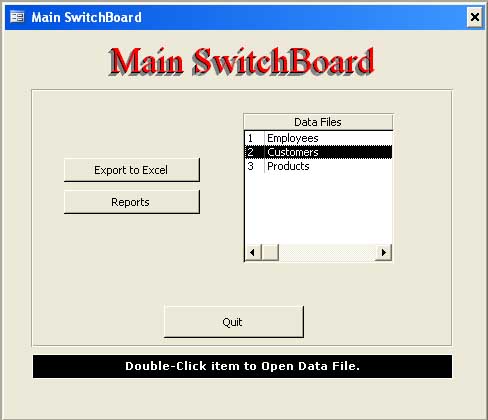
An image of a sample Main Switch Board with the above trick is given below:
Using the Mouse Move Event
A Label with a dark background (let us call it LBLTIP) is placed at the bottom of the design to display the clues when the Mouse moves over the controls above. The example text shown in the image was saved in the ListBox Tag Property along with the form's names.
To display the clue and to remove it when the Mouse moves out of the Control, we need to run a few lines of VBA code in two places. The On Mouse Move Event Procedure of the Control, as well as in the Detail Section of the Form, to remove the text and replace it with some general message text or a zero-length string to keep it empty.
The sample code in the On Mouse Move Event Procedure of the Reports Command Button is given below. It displays Open Report SwitchBoard in the LBLTIP Label Caption text at the bottom of the form when the Mouse is moved over the CommandButton.
Private Sub cmdRpt_MouseMove(Button As Integer, Shift As Integer, X As Single, Y As Single)
If Me.LBLTIP.Caption = Me.cmdRpt.Tag Then
    Me.LBLTIP.Caption = Me.cmdRpt.Tag
End If
End Sub
When the Mouse moves out of the CommandButton and touches the empty area of the Detail Section of the Form, the LBLTIP Caption changes to Welcome User: Admin (the current MS Access User Account name) and stays there till the mouse moves over to another Control on the Form.
The VBA Code in the Detail Section On Mouse Move Event Procedure is given below:
Private Sub Detail_MouseMove(Button As Integer, Shift As Integer, X As Single, Y As Single)

Dim strtag As String

strtag = "Welcom User: " & CurrentUser

If Me.LBLTIP.Caption <> strtag Then
    Me.LBLTIP.Caption = strtag
End If

End Sub
Limiting the Mouse Move Event
Even though the Detail Section Mouse Move Event Procedure has no code changes, repeating all three lines for each control is excessive. The IF... Then statement tests and prevents setting the LBLTIP Caption value every time.
We can implement this feature with a single line of code to define a common routine in the Standard Module. Once the routine is in place, call it from any control’s event procedure with the necessary parameters, and keep your codebase clean and reusable.
A sample function to achieve this is shown below:
Copy the following VBA Code and save it in a Standard Module:
Public Function ControlTip(ByVal frmName As String, Optional strtext As String = "Welcome User: ", Optional xswitch As Integer = 0)
On Error GoTo ControlTip_Err
With Forms(frmName).Controls("lblTip"
    Select Case xswitch
        Case 1
            If .Caption <> strtext Then
                .Caption = strtext
            End If
        Case Else
            If .Caption <> strtext Then
                .Caption = strtext & CurrentUser
            End If
    End Select
End With

ControlTip_Exit:
Exit Function

ControlTip_Err:
MsgBox Err.Description, , "ControlTip()"
Resume ControlTip_Exit
End Function
The above Function has three Parameters:
Name of the Form where the Function is called.
The LBLTIP.Caption display text. This will be taken from the control's Tag Property Value. The second and third Parameters are defined as optional. The function is called at the form level (in our example, called from the Detail Section) to display the welcome message after removing the earlier contents.
The Optional xswitch parameter value is for display choices. Parameter value 1 will display the Text value passed through the Second Parameter; otherwise, it displays a welcome message to the User, replacing the earlier text in the LBLTIP Caption Property.
With the above Function, we can simplify the first two subroutines as given below:
Private Sub cmdRpt_MouseMove(Button As Integer, Shift As Integer, X As Single, Y As Single)

ControlTip Me.Name, Me.cmdRpt.Tag, 1

End Sub

Private Sub Detail_MouseMove(Button As Integer, Shift As Integer, X As Single, Y As Single)

    ControlTip Me.Name

End Sub
Demo Database Download.
You can download the sample database (Access 2000 Version) from the link given below and try it out.
 Download Demo ControlTip2k.zip






No comments:
Post a Comment
Comments subject to moderation before publishing.